
How to Calibrate Your Monitor or TV for Watching Anime: Color and Motion Guide
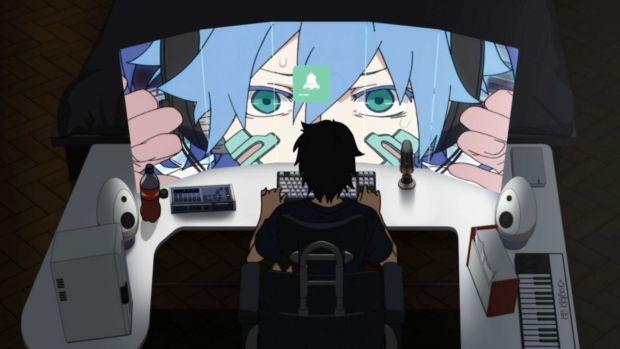
Watching anime on a poorly calibrated TV or monitor can ruin the artistic intent of the animation studio. Standard factory settings often introduce excessive sharpness, overly cool colors, and, worst of all, motion smoothing that destroys the unique style of Japanese animation.
This guide focuses on achieving visual fidelity (accurate colors) and motion fidelity (preserving the cinematic 24 fps look) essential for anime.
I. The Main Goal: Disable Motion Interpolation
The most common and serious mistake when watching anime on a modern TV is having motion interpolation (also known as Motion Smoothing) activated.
What is it and why is it bad? Anime is intentionally animated at a low frame rate (often 8 to 12 fps, displayed at 24 fps). Motion interpolation (common names: TruMotion, MotionFlow, Smooth Motion) attempts to artificially create intermediate frames to make motion appear smoother. This generates the dreaded "Soap Opera Effect," removing the drawn-animation look and making the action appear unnatural, artificial, and robotic.
Mandatory Action (List):
-
Look in your TV settings for Motion, Advanced Picture, or Video Assistance options.
-
Disable any feature with names like:
-
TruMotion (LG)
-
MotionFlow / Motion Rate (Sony)
-
Smooth Motion / Auto Motion Plus (Samsung)
-
Clear Motion (General)
-

II. Color Calibration: Aiming for Accuracy
Modern anime is generally produced under the Rec. 709 color standard (the HD standard). Color adjustments should aim for neutrality to prevent skin tones (and aura effects) from looking exaggerated or false.
Key Color Steps (List):
-
Picture Mode: Choose the most accurate mode available.
-
Prioritize: "Cinema," "Movie," or "Custom."
-
Avoid: "Dynamic" or "Sports," as they overexpose brightness and contrast.
-
-
Color Temperature: Choose a neutral white point.
-
Ideal Setting: "Warm 2" or "Warm." This sets the white point to 6500K (D65), which reduces the blue tint common in factory settings and makes colors look more natural and less fatiguing.
-
-
Contrast and Brightness: Adjust carefully to avoid "crushed blacks."
-
Brightness (Blacks): Use a dark scene (e.g., a nighttime fight in Jujutsu Kaisen). Adjust brightness until dark details are barely visible. If you raise it too high, blacks become gray.
-
Contrast (Whites): Adjust so bright whites do not lose detail.
-

III. Additional Picture Settings (Checklist)
These settings must be disabled or adjusted to low values to maintain the drawn art's intent.
-
Sharpness:
-
Setting: Lower it to 0 or minimum. Anime is already sharp; this setting introduces artifacts and artificial edges (halos) that do not exist in the original material.
-
-
Noise Reduction (DNR):
-
Setting: Off or Minimum. These functions try to clean up image noise but often smooth out fine animation details or cause ghosting/trailing.
-
-
Game Mode:
-
Note: If you are only watching anime, disable it. Game Mode reduces input lag at the expense of picture processing, which is unnecessary for passive viewing.
-
Quick Anime Calibration Summary
What you MUST do (List):
-
✅ Picture Mode: Cinema or Movie.
-
✅ Color Temperature: Warm 2 or 6500K.
-
✅ Brightness/Contrast: Carefully calibrate with a dark scene to avoid crushed blacks.
What you MUST disable (List):
-
❌ Motion Interpolation (TruMotion, MotionFlow).
-
❌ Sharpness to minimum (0).
-
❌ Noise Reduction (DNR).
Sponsored
Categories
Read More
How 'Sailor Moon' Created the Modern "Magical Girl" Template The "Magical Girl" (Mahou Shoujo) genre is one of the oldest and most recognizable in anime. When most people think of it today, they imagine a group of teenage girls in colorful outfits, elaborate transformation sequences ("henshin"), and special attacks to defeat a monster. That image, however, was not always the standard....
Top 5 Anime Movies to Make You Cry (That Aren't From Studio Ghibli) When someone asks for a recommendation for a "sad anime movie," the automatic answer is almost always Studio Ghibli and its devastating Grave of the Fireflies. It's a classic, no doubt. But the world of anime is vast, and limiting your search for strong emotions to a single studio is a mistake. Directors like Naoko...
Although the concept of a Shared Universe is popularly associated with Western comics, large anime franchises have been interweaving timelines and secondary narratives for decades. In this medium, spin-offs are not just extra stories but often essential narrative pieces that redefine the main work. We analyze how anime uses this expansion to create rich and enduring worlds. I. The Classic...
This is the "Eternal War" of anime fandom. The "Subs vs. Dubs" debate has raged since anime first became popular in the West. Both formats (subs and dubs) not only have value but are critical to the global health and growth of the anime industry. An informed, modern fan understands when and why to use each. Subs vs. Dubs: Why Both Have Value The oldest "Fandom War" is the choice of how to...
In the anime community, there is a constant and often incorrect debate. You will see fans arguing that Attack on Titan "must be Seinen" because it is violent, or that One-Punch Man is Shonen because it is about superheroes. Both assumptions are technically incorrect. To understand the manga and anime industry, you must understand one fundamental rule: Shonen and Seinen are not genres (like...